You have a fresh Linux server and an app you would rather not pay Vercel or Heroku to run. This post gets a deployment platform onto that server and a first app live on it. No Kubernetes, no YAML maze.
The platform is Levelrail, a self-hosted platform I am building. A single server is the well-tested path, and multi-node is in beta. The feature status page labels every area and links its evidence. I ran every step below on v0.8.3 and pasted the real output.
TL;DR#
| Step | What you do | Time |
|---|---|---|
| 1 | Check the server meets the basics | 1 min |
| 2 | Run the install command | 1 to 2 min |
| 3 | Create the admin account with your setup token | 30 sec |
| 4 | Deploy the sample app | 1 min |
| 5 | Turn on free HTTPS or add your own domain | your DNS speed |
What you need first#
The server needs Linux on amd64 or arm64 with systemd and root access. CI tests Ubuntu 24.04 and Debian 12. Other distros should work, but nobody has tested them.
Ports 80 and 443 should be open to the internet. Let’s Encrypt uses port 80 to prove you own the domain. For size, 1 vCPU, 1 GB of RAM and 10 GB of disk is enough to boot it, and 2 vCPU with 2 GB is more comfortable once apps build on the box. The installer warns under 1 GB of RAM and stops under 10 GB of free disk.
Step 1: run the installer#
curl -fsSL https://levelrail.com/install.sh | sudo shIt starts with preflight checks and stops if one fails, before it changes anything. This is the real output from my run:
Preflight checks:
  root       ok    running as root
  arch       ok    aarch64
  os         ok    Ubuntu 24.04.5 LTS
  systemd    ok    running
  curl       ok    found
  docker     ok    not found, will install via get.docker.com
  ram        ok    7836 MB
  disk       ok    829 GB free on /var/lib
  port 80    ok    free
  port 443   ok    free
  port 8080  ok    free
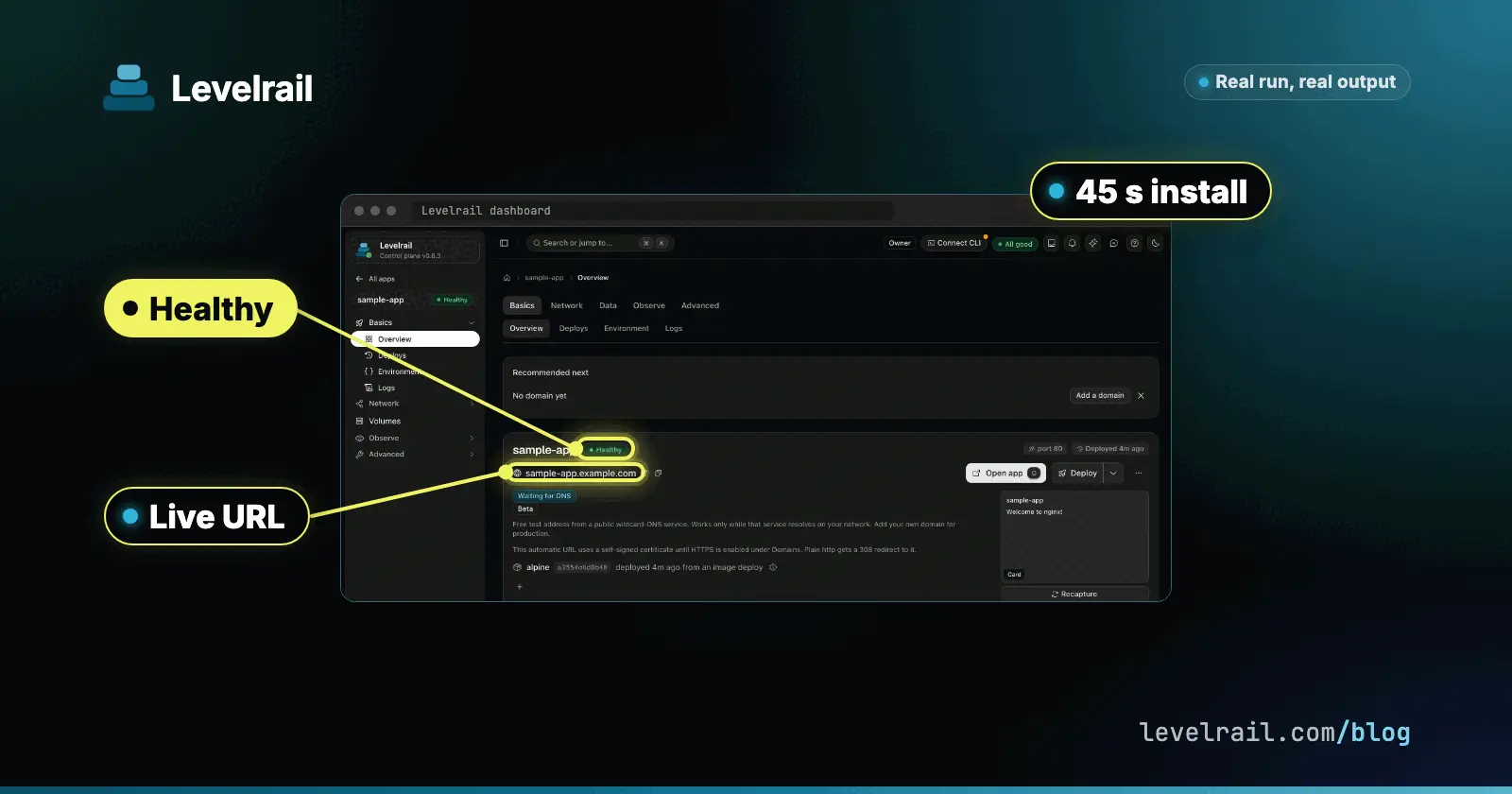
Then it installs Docker if it is missing, downloads the release, verifies the cosign signature and the checksum, writes the systemd unit and waits for the control plane to answer. It also installs levelrail-cli so you can manage the server from a terminal. Mine took 45 seconds in total, including the Docker install. A small VPS on a slower network will take a little longer.
The script installs the newest stable release. Pin one with LEVELRAIL_VERSION, or pick a channel with LEVELRAIL_CHANNEL=stable or beta.
It ends with a block you want to keep:
Levelrail v0.8.3 installed and running.

Open the dashboard:
  http://SERVER_IP:8080/login?setup=TOKEN

Create the first admin account with this one-time setup token:
  TOKEN

IMPORTANT: back up /var/lib/levelrail-data/master.key somewhere safe. Every stored
secret is encrypted with it, and it cannot be recovered if lost.

The dashboard is served over plain HTTP until you enable HTTPS.
Checkpoint: you have a dashboard link and a one-time token. Keep that terminal open.
The installer warned that ports 80 and 443 are not reachable
The installer tests both ports from the outside. In my container run it printed port 80: NOT reachable because my network address translation never routed those ports back. On a real server that warning means a firewall is in the way. Open the ports with sudo ufw allow 80/tcp && sudo ufw allow 443/tcp, or in your cloud provider’s security group. The script also notes that some providers never route a server’s own public IP back to itself, so the check can fail even when the ports are open.
Ports 80 and 443 are the only ones the installer never moves on its own. The dashboard port is different: the default is 8080, and if something else holds it the installer picks the next free port and prints the real number. Use the port from your own output.
Step 2: create the admin account#
Open the dashboard link from the installer. A fresh instance shows a first-run page titled “Set up the admin account”.

The form asks for a username, not an email, and the password needs at least 8 characters. In my run the setup token field was empty after opening the link, so paste the token in by hand if yours is empty too.
If you lost the terminal output, print the token again on the server:
sudo APP_DATA_DIR=/var/lib/levelrail-data levelrail setup-tokensetup token: TOKEN
open: http://SERVER_IP:8080/login#setup=TOKENBack up master.key from the data directory now. It protects every stored secret.
Step 3: deploy the sample app#
After you create the admin you land on the dashboard, with a card named “Deploy your first app” and three paths: a sample app, a template, or your own repo. Pick the sample app. It runs nginx:alpine with a health check, so it works on any server and needs no repo.
Levelrail waits for the health check before it calls the deploy healthy. When it is done, the Apps list shows the app as Healthy:

Open the app to see its address and port. A fresh app gets an automatic sslip.io address, so you can reach it without owning a domain.

Checkpoint: the sample app shows Healthy in the dashboard.
Step 4: check what the server still needs#
The sidebar has a “Get started” checklist that tracks the steps from “ship your first app” to “make it production ready”. Right after the install it showed my instance at 10 percent.

The Status page lists what a fresh install still warns about, each with a fix action. Mine showed five warnings: the Docker API guard, a rootful Docker daemon, the firewall check, the release signature pin, and no off-box backups for the control plane.

You can also check the server from a terminal. Without a saved login, the doctor command runs local checks only:
levelrail-cli doctorSTATUS CHECK MESSAGE
OK Docker daemon reachable at /var/run/docker.sock
OK Disk space 828 GiB free
WARN Port 80 available in use, expected if the control plane or another web server runs on this host
WARN Port 443 available in use, expected if the control plane or another web server runs on this host
All checks passed.The two port warnings are expected here, because Levelrail itself is now listening on 80 and 443.
Step 5: turn on HTTPS#
The dashboard stays on plain HTTP until you enable HTTPS. You have two routes.
No domain yet. The installer prints an sslip.io address that already points at your server. In the dashboard, open Domains and click “Enable HTTPS”, or run this from the CLI:
levelrail-cli settings ingress https enable --email you@example.comUntil you do, that HTTPS address shows a browser certificate warning. That is expected.
Your own domain. Use a subdomain made for the dashboard, like console.example.com, and do not reuse a domain an app already serves. Create the A record the dashboard shows you, wait for the checks to go green, and the dashboard moves to HTTPS.
Deploy your own app#
The app spec is one small file in your repo, app.yaml:
version: 1
services:
  web:
    build:
      type: dockerfile
    port: 8080
Set your repo and the registry path for the built image, then create and deploy with the CLI. First point it at your server and sign in from your own machine:
curl -fsSL https://levelrail.com/install-cli.sh | sh
export APP_API_URL=https://your-dashboard-domain
levelrail-cli auth login --devicelevelrail-cli apps create \
--name your-app \
--file app.yaml \
--repo your-git-repo-url \
--image-repo your-registry-pathCheck on it with levelrail-cli apps status your-app and tail logs with levelrail-cli apps logs your-app -f. If a deploy goes wrong, levelrail-cli apps rollback your-app returns to the previous version. Not sure what the spec needs? Run levelrail-cli apps create --interactive and answer the prompts.
What you get on day one, free#
Levelrail has one edition under Apache 2.0, with no license key. The binary you just installed includes sign-in with Google, GitHub, Microsoft or any OIDC provider, TOTP two-factor and passkeys, IAM policies, an audit log you can export as CSV, scheduled backups with verification, and deploy approvals.
SAML 2.0 sign-in and SCIM provisioning exist but are experimental. They are tested against a local test identity provider, not yet against a live Okta, Entra ID or Keycloak tenant. LDAP sync is not supported.
What I would check before trusting it#
Levelrail is young. A single server is the well-tested path, and multi-node and several newer features are beta. It has fewer users and less production time than the platforms it competes with. It runs only on Linux. Treat the fresh-install warnings on the Status page as a to-do list, especially off-box backups.
I would run it on a spare server with an app that can afford a bad afternoon first. That is how I would test anything this young.
Remove it cleanly#
One command removes the service and the control plane binary and keeps your data directory:
curl -fsSL https://levelrail.com/install.sh | sudo sh -s uninstallRemoved the levelrail service and /usr/local/bin/levelrail.
Kept /var/lib/levelrail-data (database, master key, certificates). Re-run with --purge to delete it.
Docker and any app containers it runs were left untouched.In my run it also left levelrail-cli, cosign, a 290 MB levelrail.releases folder under /usr/local/bin, and the running sample app container. Delete those yourself if you want a clean box. Add --purge to delete the data directory too, which wipes app and deploy state and makes every stored secret unreadable.
Frequently asked questions#
How much RAM does a self-hosted PaaS need?
Levelrail boots on 1 vCPU, 1 GB of RAM and 10 GB of disk. Your apps and builds need room on top, so 2 vCPU and 2 GB is more comfortable. The installer warns under 1 GB of RAM and stops under 10 GB of free disk.
Does the installer work on any Linux distribution?
It needs Linux on amd64 or arm64 with systemd and root access. CI tests Ubuntu 24.04 and Debian 12. Other distributions should work, but nobody has tested them.
Which ports must be open?
Ports 80 and 443 on the control plane node, because Let's Encrypt uses port 80 to prove you own the domain. Agent-only nodes need no inbound ports. The dashboard listens on 8080 by default.
I lost the setup token. How do I get it back?
Run sudo APP_DATA_DIR=/var/lib/levelrail-data levelrail setup-token on the server. It prints the one-time token again.
How do I uninstall Levelrail?
Run the installer with the uninstall argument. It removes the service, the unit file and the binary and keeps your data directory. Add --purge to delete the data directory too, which also makes stored secrets unreadable.