Use case: Internal tools

Levelrail lets you run a dashboard, an automation tool or a wiki on your own server: deploy it from the template catalog, attach your domain, and decide who can reach the platform. Sign-in, roles and the audit log are all in the free binary.

curl -fsSL https://levelrail.com/install.sh | sudo sh
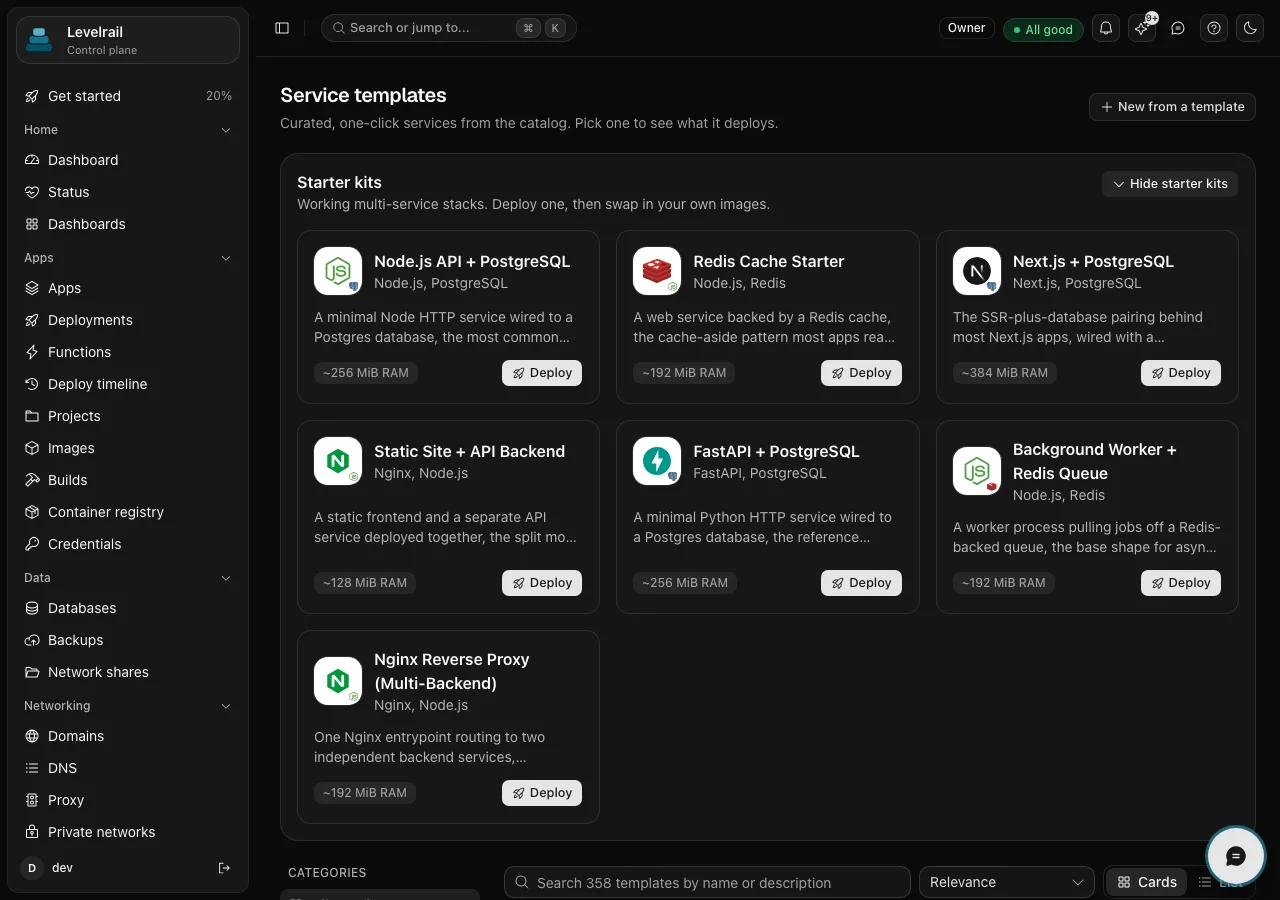
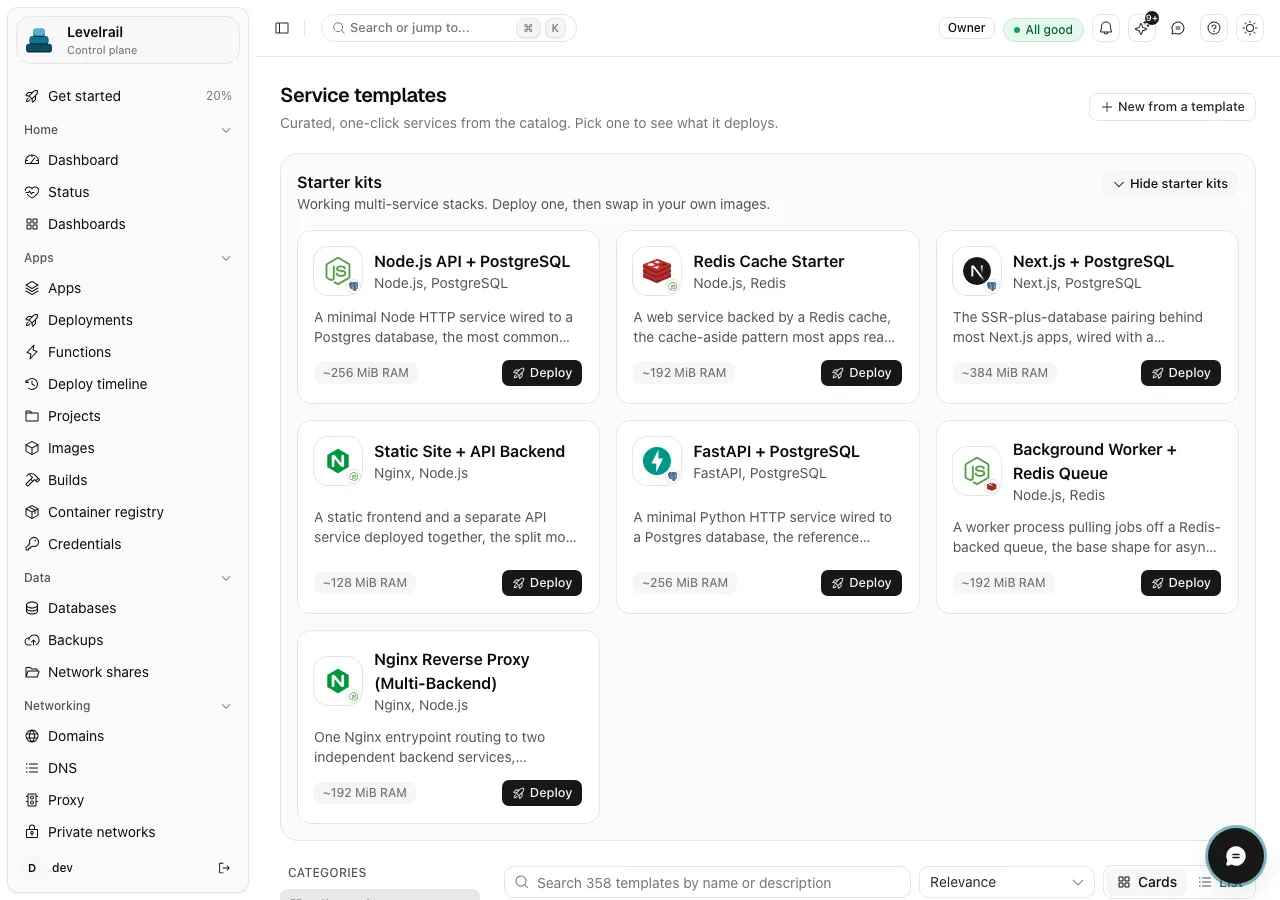
The Service templates page with starter kits such as Node.js API plus PostgreSQL and Redis Cache Starter, each with a Deploy button, and a search box over 358 templates. The Service templates page with starter kits such as Node.js API plus PostgreSQL and Redis Cache Starter, each with a Deploy button, and a search box over 358 templates.
One-click templates
  • ~360 one-click service templates Beta
  • TOTP two-factor sign-in, plus OAuth and OpenID Connect
  • 3 built-in roles: admin, operator, viewer
  • CSV export of the audit log

How it works

From template to audited tool

Pick a template, deploy it, add your own domain, then let roles and Allow or Deny IAM policies decide who gets in. The audit log records the actor and caller surface.

What you get

Everything this use case leans on

  • Beta

    Template catalog

    About 360 one-click templates cover databases, CMSs, analytics, automation, storage and monitoring. Set the variables, then deploy.

  • Sign-in options

    Email and password with TOTP two-factor, OAuth and OpenID Connect providers, and passkeys per account. The security model explains how sessions and tokens are handled.

  • Scoped IAM policies

    Allow and Deny IAM policies can be scoped to one app or database, on top of the admin, operator and viewer roles. A teammate can get the one app they work on and nothing else.

  • Audit log

    Sensitive requests are logged with the actor and the caller surface (dashboard, CLI, MCP or API). Export the log as CSV from the CLI or the API.

  • Protected environments

    Mark an environment as protected and moves into it wait for an approval. Deploy freezes block moves until you override them with a reason.

In the product
What it looks like

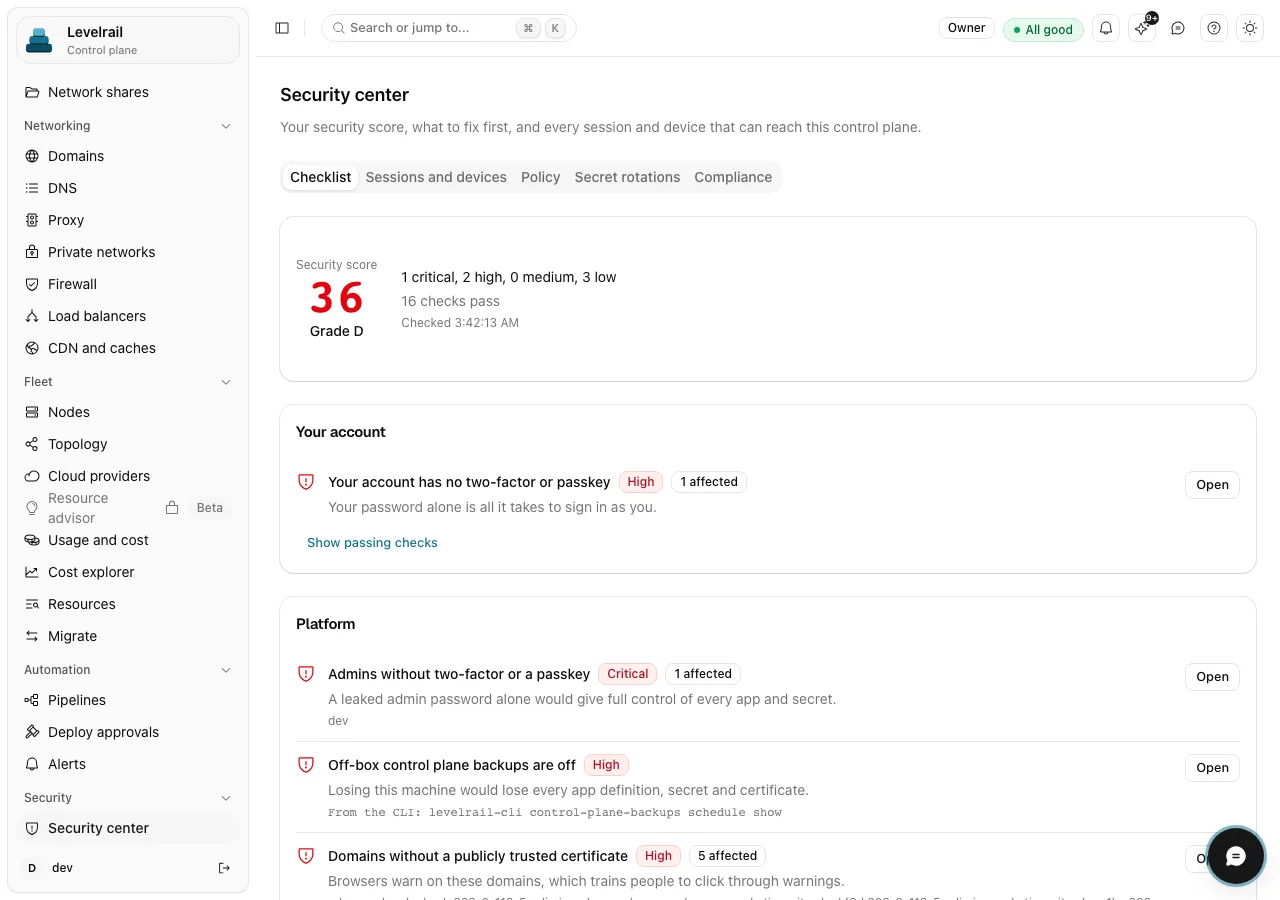
  • The Security center checklist showing a security score of 36 (Grade D) and findings such as admins without two-factor or a passkey, off-box control plane backups being off, and domains without a publicly trusted certificate. The Security center checklist showing a security score of 36 (Grade D) and findings such as admins without two-factor or a passkey, off-box control plane backups being off, and domains without a publicly trusted certificate.
    The security center lists what to fix first, including accounts without two-factor. Read the docs
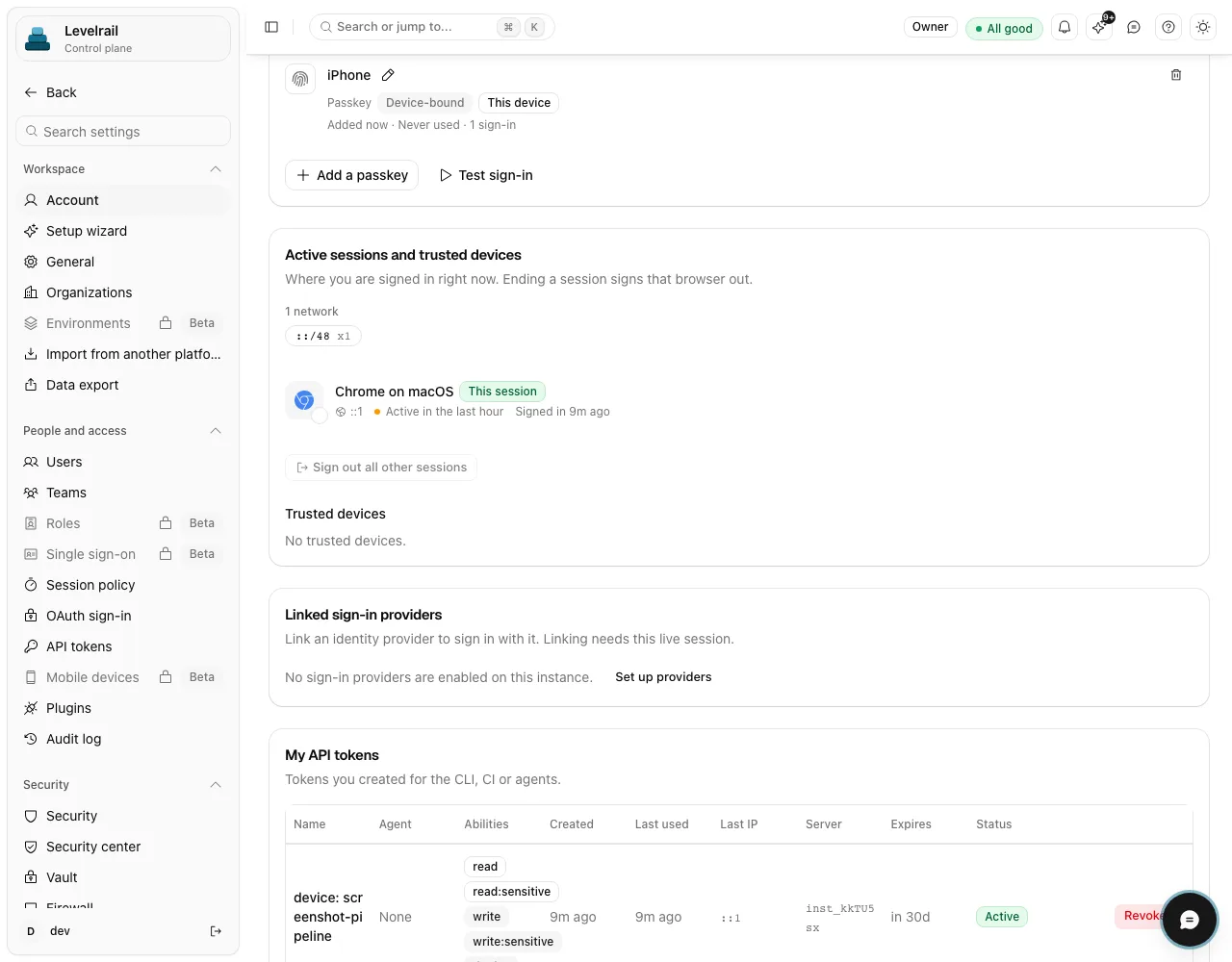
  • Account settings showing a registered passkey, active sessions and trusted devices, linked sign-in providers, and an API tokens table with abilities such as read, read:sensitive and write. Account settings showing a registered passkey, active sessions and trusted devices, linked sign-in providers, and an API tokens table with abilities such as read, read:sensitive and write.
    Passkeys, sessions and API tokens with explicit abilities live on the account page. Read the docs
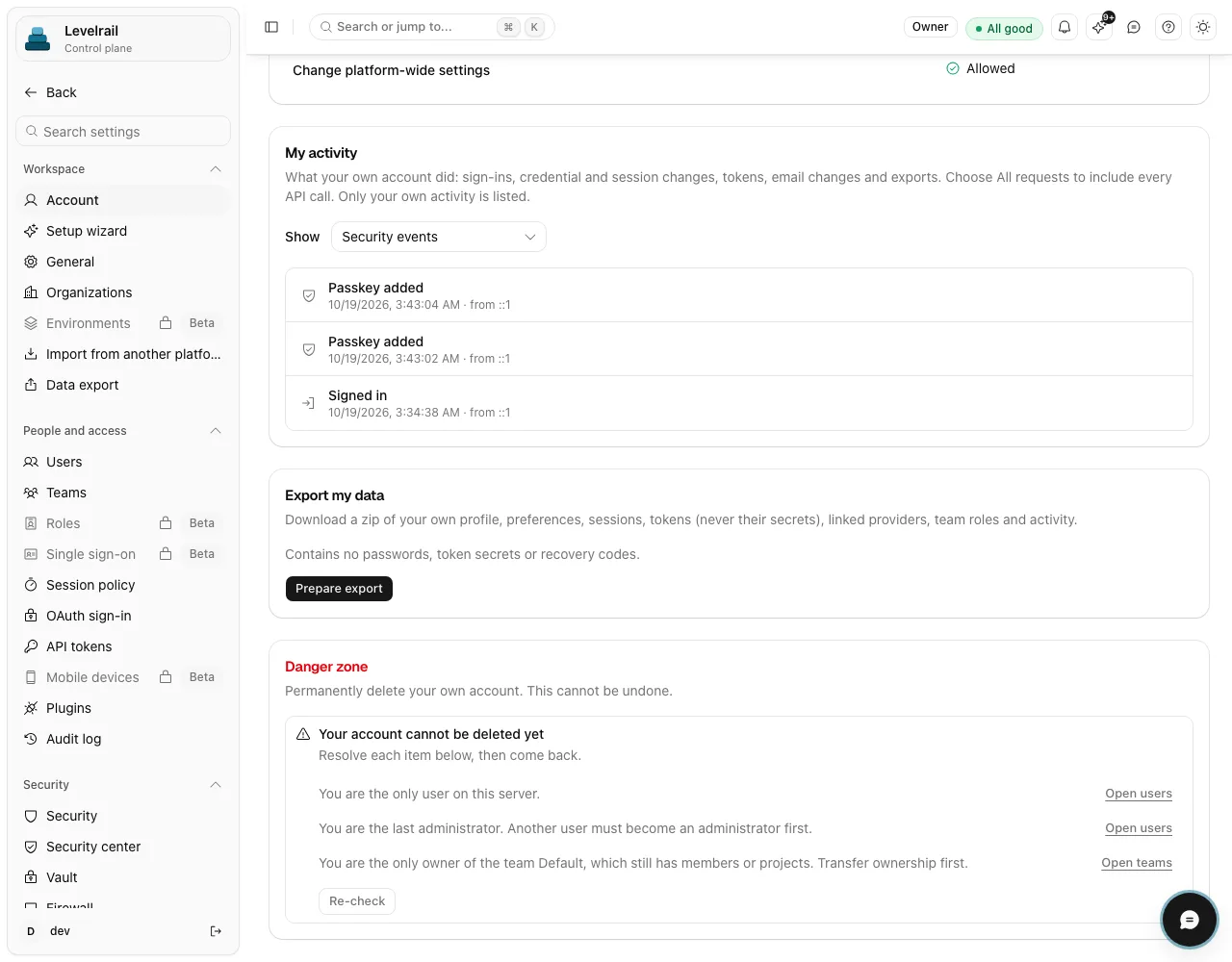
  • The My activity section of account settings listing security events such as passkey added and signed in, next to an Export my data section. The My activity section of account settings listing security events such as passkey added and signed in, next to an Export my data section.
    Sign-ins, credential changes and token events are recorded per account. Read the docs

Get started

From zero to running

  1. Pick a template

    Pick a template from the catalog, fill in its variables and deploy it. Check that it boots before you tell the team about it.

  2. Add domain and access

    Add your domain, then create users or tokens with the narrowest ability that does the job. The Identity and access guide lists every ability.

  3. Enable two-factor

    Turn on two-factor for every account that holds root. The Security center lists the accounts that still lack it.

Go deeper

Read it, run it, or read the code

Good to know

Scope and maturity, stated plainly so you can plan around them.

  • Templates are labeled beta. Live tests deploy a sample of them and the rest pass structural checks, so boot the one you need in a staging environment first.
  • OAuth and OpenID Connect sign-in work today. SAML single sign-on and SCIM are beta and off by default, and they have not yet been checked against a live identity provider, so keep them out of your critical path for now.
  • Projects and organizations are labels. Access is enforced by roles and IAM policies rather than project membership, so use policies to limit who sees what. Agencies shows a per-client setup.

Maturity differs by feature. Feature status lists what is stable, beta or behind a flag, with the evidence for each.

FAQ

Questions

How do I restrict who can use a self-hosted internal tool?

Use roles and IAM policies to control who can manage the tool on the platform. Who can open the tool itself depends on how you expose its domain and on the tool's own login, so set both.

Does Levelrail support single sign-on for the dashboard?

OAuth and OpenID Connect sign-in are included and ready to use. SAML and SCIM sit behind a beta toggle and have not been verified against a live identity provider, so treat them as experimental. If your tools keep data in a database, read databases and backups too.

Run it on a server you own

One command installs the control plane. Apache 2.0, no license key and no paid tier.

curl -fsSL https://levelrail.com/install.sh | sudo sh