Multi-node: adding and managing nodes
Everything on this page is optional. A fresh install runs entirely on the control plane's own local node, and nothing here has to be touched to make it work.
A second node is something you add when one box runs out of room, when you want to isolate builds from production containers, or when you want a dedicated database host - not something the platform makes you think about on day one.
Why a second node is optional, not assumed
The platform is designed single-node-first. You add a second node when you need it, not on day one.
This shows up in three ways:
- Dashboard node picker only renders once at least one node besides the local one exists. On a single-node install, it never appears.
- Placement field (
node_id) accepts the empty string as a real, permanent value meaning "the local node," not a placeholder. - Auto-placement only picks a remote node when one is registered, schedulable, and online. With none registered, it always leaves
node_idempty (local).
Enrolling a second node
Enrollment uses a one-time join token exchanged for a client certificate (the agent dials out to the control plane; the control plane never initiates a connection).
Before enrolling a real (non-local) node, set APP_AGENT_ADVERTISE_HOST on the control plane to the host or IP a remote agent will actually use in APP_CONTROL_PLANE_ADDR. It defaults to 127.0.0.1, which only ever matches a local, single-machine test. With a mismatched value, enrollment itself still succeeds (the initial certificate exchange pins by CA fingerprint, not hostname) and the node appears in nodes list, but its persistent session then fails TLS hostname verification on every connection attempt, and the node stays stuck at status: pending forever instead of flipping to online.
Enrollment flow
Step 1: Mint a join token
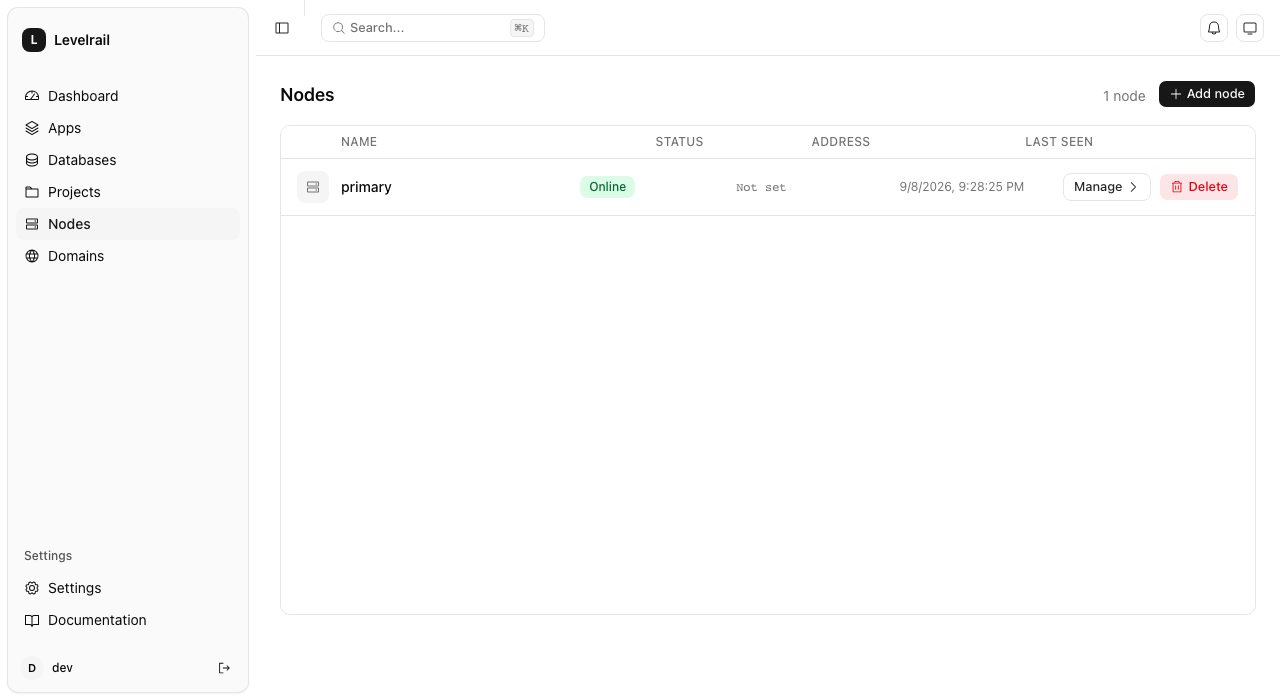
levelrail-cli nodes join-tokenNavigate to the Nodes page and click "Add node"This calls POST /api/v1/nodes/join-tokens:
- Token is valid for 15 minutes.
- Returned in plaintext exactly once. Server only stores its hash.
- If expired unused, mint a new one. There is no renewal.
Step 2: Run the agent on the new machine
APP_CONTROL_PLANE_ADDR=controlplane.example.com:9443 \
APP_JOIN_TOKEN=<token from step 1> \
APP_CA_FINGERPRINT=<ca fingerprint from step 1> \
./levelrail-agent
Environment variables:
APP_CONTROL_PLANE_ADDR: Control plane gRPC listener (default:9443).APP_JOIN_TOKEN: The token from step 1 (single-use).APP_CA_FINGERPRINT: The control plane's CA fingerprint, shown next to the token in step 1. Recommended: the agent refuses to enroll (and never sends the token) unless the control plane's certificate chains to this CA. Without it, the agent trusts whatever answers atAPP_CONTROL_PLANE_ADDRon first use.APP_NODE_NAME: Optional, defaults to machine hostname.APP_AGENT_IDENTITY_FILE: Where to save the identity (default./levelrail-agent-identity.json, mode0600).
On first run: The agent generates its own private key, sends only a certificate signing request with the join token, and persists the signed certificate, its key and the control plane's CA cert locally. The private key never leaves the machine.
On subsequent runs: The agent skips enrollment and reconnects using the saved certificate, which it renews on its own (see Agent certificates). The join token is single-use.
Step 3: Confirm it registered
levelrail-cli nodes listThe node appears the moment enrollment is saved, with status: pending until its first heartbeat (then flips to online).
There is no live "waiting for the agent" indicator in the dashboard, by design. Refresh the page once the agent connects.
Step 4: Use it for placement
Once connected, it is a normal placement target:
- Pick it in the app or database create form's node picker.
- Move an existing resource onto it.
- Let auto-placement send new resources there.
Build workloads: A node accepts app workloads by default but not build workloads. Explicitly enable accepts_build_workloads to dispatch builds there.
Enrolling over SSH instead of by hand
Steps 1 and 2 above can be automated: instead of minting a token and running the agent command yourself on the new machine, the control plane can SSH into it and do both for you.
levelrail-cli nodes ssh-provision \
  --host 192.0.2.10 --user root --key-file ~/.ssh/id_ed25519 \
--name home-server --control-plane-addr controlplane.example.com:9443Nodes page -> "Add node" -> "Connect over SSH"POST /api/v1/nodes/ssh-provision accepts a host, port (default 22), username, and either a private key (optionally passphrase-protected) or a password. It mints a join token the same way step 1 does, then in the background:
- Connects over SSH and detects the OS, kernel architecture, and whether Docker and systemd are already present. Only Linux with systemd is supported (the same requirement
install.shhas); an unsupported host fails here with a clear reason before anything is changed. - Installs Docker via
get.docker.comif it's missing. - Writes the agent's environment file and a systemd unit, then enables and starts it, the same shell steps cloud-init runs on a freshly created VM (see
docs/node-provisioning.md), just executed directly over the SSH session instead of embedded in a cloud-init document. - Confirms the service actually stays active, surfacing the last
journalctllines as the failure reason if it doesn't.
The SSH credential (key or password) is held only in memory for this one call and is never written to the database or logged; the join token itself is written to a root-only (0600) environment file on the target host, the same handling docs/node-provisioning.md's cloud-init path already uses and documents.
Poll progress with GET /api/v1/ssh-node-provisions/{id} (CLI: nodes ssh-provisions show <id>), which also carries the accumulated install log and the detected OS/architecture. Status moves through connecting -> detecting -> installing -> enrolling -> ready, or failed with a reason. The dashboard wizard's SSH step shows the same stages plus a live log tail.
Known limitation: no host key verification
There is no known_hosts store or trust-on-first-use pinning for an operator's own arbitrary machine yet: the client accepts whatever host key the target presents. This is a real gap versus a properly pinned SSH client, not an oversight; the mitigation is the same one this feature's own credential handling relies on, that the operator is connecting to a machine they already control, over a network path they already trust enough to type a password or paste a key into.
Node health and heartbeat
How heartbeats work
A connected agent sends an unprompted Heartbeat frame up its Session stream at a regular interval (default 15 seconds, APP_NODE_HEARTBEAT_INTERVAL, read agent-side). The control plane only touches last_seen_at when one of these frames actually arrives, never merely because the stream is still open: a stream staying open proves the TCP/TLS connection hasn't been torn down, not that the agent process on the other end is still actually running.
The connection also carries an HTTP/2 PING keepalive in both directions (APP_NODE_KEEPALIVE_TIME/APP_NODE_KEEPALIVE_TIMEOUT, default 10s/10s on the control plane; the agent mirrors this with its own env vars of the same name). A process that stops running entirely, frozen or deadlocked rather than exited, cannot answer a PING any more than it can send a Heartbeat frame, so gRPC tears the connection down from underneath it, well within the timeout below, without waiting on the reconcile pass at all.
Graceful disconnect: Agent process exits cleanly, node flips to offline immediately.
Hard disconnect (clean, no keepalive): No clean gRPC closure, so the control plane doesn't notice via the stream itself. The internal/reconcile/nodehealth.Controller detects this: every reconcile pass compares last_seen_at against APP_NODE_HEARTBEAT_TIMEOUT (default 45 seconds). If a node is past the timeout and still marked online, the controller flips it to offline and records a Heartbeat condition explaining why.
Hard disconnect (frozen process, e.g. SIGSTOP): The TCP/TLS connection can stay technically open indefinitely with nothing to close it. The keepalive PING above is the backstop for exactly this: the transport itself notices the peer stopped responding and ends the connection, which then follows the same path as any other hard disconnect (the node's Status update happens as soon as Session returns, without needing to wait for nodehealth's own timeout).
Checking node health
levelrail-cli nodes health <id>This calls GET /api/v1/nodes/{id}/health:
- Returns the stored
Heartbeatcondition. - Re-checks any node-scoped alerts (patch status, disk space, resource usage).
- A node that enrolled but never connected shows
NeverConnected, not an error.
The control plane's local node
The control plane's own local node uses the same health system: it heartbeats itself rather than through gRPC. It is never permanently online by fiat.
Note on cordoning: cordoned is a defined status but nothing sets it. Cordon is tracked as a separate boolean field (schedulable). A node can be online and cordoned, or offline and schedulable.
Agent certificates: renewal and re-enrollment
Each agent authenticates with a client certificate issued by the control plane's own CA (90 days by default, APP_AGENT_CERT_VALIDITY on the control plane). The design and its rejected alternatives are in ADR 021.
Automatic renewal
When a certificate is two thirds of the way through its lifetime (APP_AGENT_CERT_RENEW_FRACTION on the agent, default 0.67, plus a little random jitter so nodes enrolled together do not renew together), the agent generates a fresh key and asks the control plane to sign it over its existing authenticated connection. Nothing needs restarting:
- The control plane signs the request and records the new certificate. The previous one stays accepted for a grace window (
APP_AGENT_CERT_RENEW_GRACE, default24h), so a renewal whose response is lost, or one that races a control plane restart, never locks the node out. - The agent writes the new identity next to the old one (temp file, fsync, rename, the old one kept as
<identity file>.prev) and tests it with a separate connection. - If the test passes the agent switches to the new certificate and drops the backup; if it fails the agent restores the old identity and retries later with backoff (1 minute doubling to 1 hour).
An agent stopped in the middle of this settles it on its next start: it keeps whichever identity the control plane accepts.
Nodes enrolled before agents generated their own keys keep working. Their first renewal moves them to an agent-generated key (the node page shows the key origin). Agents older than this change still enroll against a newer control plane and get a server-generated key; set APP_AGENT_REQUIRE_CSR=true on the control plane to refuse that once every agent is upgraded.
Seeing expiry
- Dashboard: every node row shows "Cert expires in N days", amber inside the warning window and red once critical, expired or revoked. The node page has an Agent card with expiry, last renewal, key origin, fingerprint, agent version, platform and commit.
- CLI:
nodes listhasCERTandAGENTcolumns;nodes getshows the details. - API:
GET /api/v1/nodesandGET /api/v1/nodes/{id}carrycert(stateisok,expiring,critical,expired,revokedorunknown, plusdays_remaining,not_after,renewed_at,generation,key_origin) andagent(version,commit,os,arch,outdated). - Alerts: a
node_cert_expiringrule fires while any node's certificate is insideAPP_NODE_CERT_EXPIRY_WARNING(default504h, 21 days; a rule'sfor_durationoverrides it) or has expired.APP_NODE_CERT_EXPIRY_CRITICAL(default168h) sets when the badge turns red. Healthy agents renew with about 30 days left, so either one firing means renewal is failing. - Attention: expiring, expired and revoked certificates and outdated agents appear on the status page and in
levelrail-cli attention.
Existing nodes get an estimated expiry (enrollment time plus 90 days) until they next connect, when the real certificate's expiry replaces it.
Re-enrolling a node
A node that was offline past its certificate's expiry, or whose certificate was revoked, cannot renew. Re-enroll it instead; it keeps its node ID, placements and history:
- Dashboard: open the node and click Re-enroll node. CLI:
levelrail-cli nodes reenroll-token <id>. Both mint a single-use token bound to that node, valid for 15 minutes, and show the command once. - Run the command on the node:
APP_CONTROL_PLANE_ADDR=<control-plane-host>:9443 \
APP_REENROLL_TOKEN=<token> \
APP_CA_FINGERPRINT=<fingerprint> \
./levelrail-agent reenroll
The agent verifies the control plane against the CA in its existing identity file (or the fingerprint when the file is gone), generates a new key, and saves the new identity. A running agent picks it up at its next reconnect, so no restart is needed; an agent that was stopped just needs starting. A token minted for one node cannot re-enroll another, and a join token cannot be used to re-enroll.
When the agent sees its certificate expired or refused it logs the exact re-enroll command instead of retrying in a tight loop.
Revoking a certificate
Revoke certificate on the node page, levelrail-cli nodes revoke-cert <id>, or POST /api/v1/nodes/{id}/revoke-cert makes the control plane refuse the node's certificate and closes its live session immediately. Workloads already on the node keep running but can no longer be managed. Only a re-enroll token brings the node back.
Agent version
Every agent reports its version, commit, OS and architecture when its session opens. Set APP_AGENT_MIN_VERSION on the control plane (for example v0.9.0) to flag older agents, and agents too old to report a version, as outdated in the node list, node page, CLI and attention list. Unset, no agent is flagged. Upgrading agents is still manual: stop the agent, replace the binary, start it again.
Cordon, drain, uncordon
Cordon marks a node unschedulable for new placements without moving anything already running.
Drain is the heavier action that actually moves existing placements off.
levelrail-cli nodes cordon <id>
levelrail-cli nodes uncordon <id>
levelrail-cli nodes drain <id> [--target <node-id>]
Cordon / uncordon
POST /api/v1/nodes/{id}/cordon and .../uncordon are idempotent.
Effects:
- Excluded from auto-placement.
- Refused as an explicit placement target (returns
400). - Cordoning an already-cordoned node is a no-op success.
Drain
POST /api/v1/nodes/{id}/drain?target_node_id= moves every service and database on the node.
Placement options:
- With
--target: Move everything to the specified node. - Without
--target(and auto-placement enabled): Each resource picks its own target from least-loaded-node logic, spreading load across other nodes.
Behavior:
- Only changes desired placement immediately. The reconciler actually relocates containers on its next pass.
- One resource failing to move does not stop the rest.
- GPU apps (
resources.gpu) only move to a node with a working nvidia runtime and enough free GPUs. An app no node can host stays where it is and is listed underblockedwith a per-node reason (no GPU node available (gpu-2: not enough free GPUs: needs 2, 1 free of 2)). Models cannot be moved, so any model on the node is always listed as blocked. See GPU scheduling. - Response:
200on full success,207 Multi-Statuswhen some resources failed (lists exactly what moved and what didn't). Never a bare500for a partial result.
Deleting a node
DELETE /api/v1/nodes/{id} (CLI: nodes delete <id>)
- Refused with
409while the node still has anything placed on it. Drain first. - Otherwise idempotent. Deleting an already-deleted node ID succeeds.
Viewing what's placed on a node
There is no dedicated "workloads on this node" list endpoint yet. What exists instead:
Dashboard app and database detail pages: Show node_id directly with a move-to-node control next to it.
Drain preview: Running a drain (or deleting a node) enumerates everything on the node server-side. This is why deleting a node with placements fails loudly rather than silently orphaning them.
Node metrics: Report a resource_count - how many placed services contributed a sample in the queried time range. A rough live signal of occupancy without being a real inventory.
A dedicated "list everything placed on node X" endpoint is scope for a future release (see Not built yet).
Node-level metrics
levelrail-cli nodes metrics <id> --metric cpu_percentGET /api/v1/nodes/{id}/metrics returns summed container metrics, not host metrics.
Container-level metrics (summed)
For cpu_percent, memory_usage_bytes, network_rx_bytes, network_tx_bytes, disk_read_bytes, and disk_write_bytes:
- The number is the sum of every placed app service's per-container samples.
- Not a read of the host's actual free/total memory or CPU.
memory_limit_bytesis excluded because summing unconstrained container limits would multiply the host's memory by N.
Host-level metrics (real reads)
disk_used_bytes and disk_total_bytes are actual per-node host readings written by HostDiskCollector.
Dashboard: The node metrics view labels summed metrics with "summed across N containers" so the distinction is visible.
Known limitation
Databases placed on a node are excluded from the sum (only app services are included). Including them is separate future work.
Fleet-wide utilization
levelrail-cli nodes resource-usageGET /api/v1/nodes/resource-usage is the fleet-wide counterpart to the per-node time series above: one snapshot with every node's latest CPU/memory/disk reading plus a rollup, read by the node list's CPU/Memory/Disk columns and the dashboard's fleet summary card. Same summed-not-host-read caveat for CPU/memory, same real-host-read caveat for disk (today, only ever populated for the node running the control plane). See docs/observability.md's "Fleet utilization" section for the full response shape.
OS patch status
levelrail-cli nodes patch-status <id>GET /api/v1/nodes/{id}/patch-status reads the latest patch sample from HostPatchCollector.
Connection history
Every node status change (online, offline, cordoned) is recorded, the newest 200 per node. See it on the node detail page's "Connection history" card, or from the CLI:
levelrail-cli nodes events <id> [--limit N]GET /api/v1/nodes/{id}/events?limit=N returns the same list, newest first.
Collection details:
- Interval:
APP_OS_PATCH_CHECK_INTERVAL(default 1 hour). - Lookback: Up to 48 hours (handles slow or just-restarted collectors).
Response states (keep distinct):
checked: false- No sample yet, no supported package manager detected, or collector hasn't run.checked: true, total: 0- Genuinely up to date.checked: true, total: N- Updates available, with a separatesecuritycount (the number worth acting on urgently).
Dashboard: Rendered as a single status badge (not a chart), since it's one current fact, not a time series.
Simple spread placement (auto-placement)
When you create an app or database without specifying a node, the server decides placement.
How it works:
APP_AUTO_PLACEMENT(default: enabled): Iffalse, always place on local node.- If enabled:
autoPlaceNodepicks the schedulable, online node with the fewest resources (apps + databases). Tie broken by lexicographically smallest node ID. - With no eligible remote node: Falls back to local node.
GPU apps: a new app with resources.gpu is only auto-placed on a node with a working nvidia runtime and enough free GPUs (least loaded among those), falling back to the local host if it fits. If none fits, the create is refused with 409 and the reason per node; pass node_id to override. See GPU scheduling.
Important: This is simple spread counting, not bin-packing. It counts resources only, never CPU, memory, or disk headroom. See CLAUDE.md non-goals for v1.
Explicit placement: An explicit node_id (or explicit empty string meaning "local, on purpose") always overrides auto-placement and is validated against cordoned/unknown-node checks.
Dashboard visibility: Create responses carry auto_placed: true with the node_id picked. A toast shows "Auto-placed on node ... (simple spread scheduling)" so it's never a silent decision.
Moving an app with its volumes
Simple move: PUT /apps/{name}/node changes only node_id. The reconciler creates fresh empty volumes on the new node. Old volumes stay behind. Fine for stateless apps, wrong for apps with state.
Move with volumes: POST /api/v1/apps/{name}/move-with-volumes (dashboard: "Take its volumes with it" checkbox; CLI: levelrail-cli apps set-node <name> <node-id> --with-volumes) does a proper migration. The dashboard dialog previews the plan before you confirm: stop the app, copy each named volume, switch placement, start it on the destination, with the expected downtime and the rollback story spelled out (there is no automatic health gate or rollback; a failed step leaves the app stopped and the move can be retried).
Steps
Stop: App is suspended, containers torn down on the current node (synchronously). Nothing writes to volumes during archival.
Move each volume: Every named volume is tarred from source node and untarred to destination, one at a time, over the same transport volume backups use. No S3 bucket needed - the two nodes' Docker daemons are directly reachable from the control plane.
Update placement: Only after all volumes copy successfully does
node_idchange.Resume: Suspended clears, reconciler nudges the app container onto the new node with the already-populated volumes.
Tracking progress
Every step is recorded on a store.AppVolumeMove row as it happens. Poll with GET /apps/{name}/moves/{id} or check history with GET /apps/{name}/moves.
Example: If step 2 fails on the second of three volumes, the row shows:
stop_app: succeededmove_volume:app-<name>-cache: succeededmove_volume:app-<name>-uploads: failed- (nothing past that)
WARNING
This is not atomic. If any step fails, the app is left suspended (stopped). node_id never changes until all volumes have copied. Retrying is safe: archiving is read-only, restoring is a full overwrite. No automatic rollback of already-copied volumes; operators clean up unreferenced volumes by hand if needed.
Special cases
No named volumes or already on destination node: Takes the simple move path instead. Response comes back status: "succeeded", no polling needed.
Bind mounts (app.yaml's host-path mounts): Never moved by this path. Archive/restore primitives exist only for Docker-managed named volumes.
WireGuard mesh and internal DNS
This section has two parts: what works today (viewing mesh status, key rotation on the control plane's node), and the incomplete multi-node arm that keeps the design scoped.
Why it needs to exist
An app's database connection string is baked into container environment at creation time. When a database moves to another node, the string doesn't rewrite itself.
Solution: Use DNS names from the start. The name resolves to wherever the service currently lives. internal/reconcile/mesh keeps that mapping current: every pass it reads node and placement data, distributes WireGuard configuration, and rebuilds the internal DNS zone (<brand-short-name>.internal, e.g., levelrail.internal).
When mesh is enabled, database env vars (like DATABASE_URL or any field from an app.yaml { from: postgres.main.url } reference) automatically resolve to the database's mesh DNS name, allowing an app on one node to connect to a database on another node. Without mesh, they resolve to the database container's Docker name, reachable only within that node's own Docker network. This happens automatically: no app-side changes needed when mesh is enabled.
What works today
Enable with APP_MESH_ENABLED=1 (default: off). Non-fatal to misconfigure, the control plane still starts if mesh setup fails.
This brings up:
- The control plane's own WireGuard device, interface, and mesh address.
- Its own DNS server (configurable via
APP_MESH_DNS_ADDR, default:5390). - A self-peer entry for the local node.
Configuration:
APP_MESH_ENABLED: Set to1to enable mesh (default: off).APP_MESH_CIDR: WireGuard mesh subnet in CIDR notation (default:10.0.0.0/8, picked automatically). An invalid override is logged as a warning and the default is used instead; the control plane does not fail.APP_MESH_DNS_ADDR: Which address to bind the internal DNS server to (default::5390). An unprivileged port, not:53, so containers cannot query it without additional setup (see caveat below).
Single-node DNS caveat: Docker container DNS accepts only a bare IP address, never a custom port. In the default configuration (port 5390), no container actually queries the mesh DNS server. To enable it:
- Set
APP_MESH_DNS_ADDR=:53. - Grant the process permission to bind port 53 (e.g., via
setcapon Linux). - Restart the control plane.
Without port 53, containers fall back to Docker's embedded resolver. Mesh failures (disabled, DNS not on 53, etc.) log warnings but never break anything.
Viewing mesh status
Check the control plane's live WireGuard mesh state, interface details, and every peer:
levelrail-cli nodes meshcurl -H "Authorization: Bearer $TOKEN" \
https://control-plane.example.com/api/v1/meshOutput includes:
- Backend:
kernel(WireGuard kernel module),userspace(wireguard-go fallback), ordisabled. - Interface: The WireGuard device name (e.g.,
wg0). - Mesh address: The local node's assigned IP in the mesh.
- Public key: The local node's WireGuard public key.
- Last rotation: Timestamp and state if a key rotation is in progress (confirming or confirmed).
- Peers: One entry per enrolled node, showing mesh address, last handshake, health status, and whether it has a live device entry.
A peer with live: false is registered in the node inventory but the mesh device has no live entry yet (the reconciler has not reached it this pass, or peering hasn't converged yet).
Rotating the control plane's mesh key
Generate a fresh WireGuard keypair for the control plane's node and make it the live mesh identity immediately:
levelrail-cli nodes rotate-key <local-node-id>curl -X POST -H "Authorization: Bearer $TOKEN" \
https://control-plane.example.com/api/v1/nodes/<local-node-id>/mesh/rotate-keyWhat it does:
- Generates a fresh keypair immediately.
- Updates the local node's mesh entry with the new public key.
- The mesh reconciler propagates the new key to every peer on its next pass.
- Watch
levelrail-cli nodes meshand itsrotationfield to see when every reachable peer has caught up. - A brief reconnect blip on mesh traffic is possible until all peers have the new key.
Limitation: Only the node running the control plane itself can be rotated today. Rotating a remote node returns HTTP 501 (not implemented). The agent-side wire extension for remote key rotation does not exist yet, but is scoped future work.
What doesn't work yet: multi-node mesh
internal/network.ConfigSink (the interface that carries mesh config to remote nodes over gRPC) is not built. Today only LocalSink exists, which configures only the process it runs in.
Result: Enabling APP_MESH_ENABLED on a control plane with a second enrolled node does not mesh that node in. The control plane has its own device and can rotate its own key (both documented above), but there's no agent message to deliver config to remote nodes, and no agent-side code to apply it.
What's scoped: One new agent request/response message, plus a case in internal/agent.Execute calling Mesh.Apply. It's defined work, not built.
API reference
| Method | Path | Ability |
|---|---|---|
GET | /api/v1/nodes | root |
GET | /api/v1/nodes/{id} | root |
DELETE | /api/v1/nodes/{id} | root |
PUT | /api/v1/nodes/{id}/workloads | root |
POST | /api/v1/nodes/join-tokens | root |
POST | /api/v1/nodes/ssh-provision | root |
GET | /api/v1/ssh-node-provisions | root |
GET | /api/v1/ssh-node-provisions/{id} | root |
GET | /api/v1/nodes/{id}/health | root |
POST | /api/v1/nodes/{id}/cordon | root |
POST | /api/v1/nodes/{id}/uncordon | root |
POST | /api/v1/nodes/{id}/drain?target_node_id= | root |
GET | /api/v1/nodes/{id}/metrics?metric=&from=&to=&step= | root |
GET | /api/v1/nodes/{id}/patch-status | root |
GET | /api/v1/nodes/{id}/events | root |
POST | /api/v1/nodes/{id}/mesh/rotate-key | root |
POST | /api/v1/nodes/{id}/reenroll-token | root (scoped to node:{id}) |
POST | /api/v1/nodes/{id}/revoke-cert | root (scoped to node:{id}) |
GET | /api/v1/mesh | root |
PUT | /api/v1/apps/{name}/node | root |
POST | /api/v1/apps/{name}/move-with-volumes | root |
GET | /api/v1/apps/{name}/moves | read |
GET | /api/v1/apps/{name}/moves/{id} | read |
Every node route requires the root ability specifically, not read or write: node management is treated as control-plane-level administration, not per-resource access. GET /api/v1/nodes/{id} also carries an alert_status field when telemetry is configured, a live re-evaluation of that node's patch-status/disk-space/resource-usage alert standing, not a stored value. The two app-scoped placement routes sit at the same root tier for the identical reason: move-with-volumes is both a placement change and an in-place, full-overwrite restore of every named volume.
CLI
levelrail-cli nodes list [flags]
levelrail-cli nodes get <id> [flags]
levelrail-cli nodes delete <id> [flags]
levelrail-cli nodes join-token [flags]
levelrail-cli nodes ssh-provision --host ADDR --user NAME (--key-file PATH | --password) --name NAME [flags]
levelrail-cli nodes ssh-provisions list|show <id> [flags]
levelrail-cli nodes cordon <id> [flags]
levelrail-cli nodes uncordon <id> [flags]
levelrail-cli nodes drain <id> [--target <node-id>] [flags]
levelrail-cli nodes workloads <id> --accepts-app=BOOL --accepts-build=BOOL [flags]
levelrail-cli nodes health <id> [flags]
levelrail-cli nodes patch-status <id> [flags]
levelrail-cli nodes metrics <id> --metric NAME [--since DURATION | --from TIME --to TIME] [--step DURATION] [flags]
levelrail-cli nodes mesh [flags]
levelrail-cli nodes rotate-key <id> [flags]
levelrail-cli nodes reenroll-token <id> [flags]
levelrail-cli nodes revoke-cert <id> [flags]
levelrail-cli apps set-node <name> <node-id> [--with-volumes] [flags]
levelrail-cli apps clear-node <name> [--with-volumes] [flags]
App placement commands
apps set-node and apps clear-node are the CLI counterpart of the dashboard Move dialog.
Without --with-volumes: Instant move. Calls PUT /apps/{name}/node.
With --with-volumes: Full migration. Calls POST /apps/{name}/move-with-volumes, polls GET /apps/{name}/moves/{id} until complete, then prints the finished move record (or failure reason and step it reached).
Workload capabilities
nodes workloads is a full replace of both flags, not a per-field patch.
- Both
--accepts-appand--accepts-buildare required on every call. - Prevents accidentally leaving one unset and having it silently reset to
false. accepts_build_workloadsopts a node into dedicated build placement.- New nodes accept app workloads by default but not build workloads (explicit enable required).
See also
- Backups and storage - Move app volumes to another node using the volume migration API
- Observability - Monitor per-node metrics, resource usage, and OS patch status
- Deploying apps - Place apps on specific nodes or use auto-placement
Not built yet (deliberate follow-ups)
The WireGuard mesh does not span nodes yet
ConfigSink's gRPC arm is scoped but not built (wire contract change plus agent-side Mesh.Apply). Enabling APP_MESH_ENABLED today only wires up the control plane's own node; you can view its status and rotate its key. Remote nodes cannot be meshed until the agent-side wire extension lands.
No dedicated "what's placed on this node" endpoint
Closest alternatives: drain's resource enumeration, each resource's node_id field on its detail page. No single list endpoint or dashboard panel that answers "show me everything running here" directly.
No resource-aware scheduling
Auto-placement and drain's auto-spread count placements only, never CPU, memory, or disk. Real bin-packing or affinity rules are an explicit v1 non-goal.
No per-build placement policy beyond the capability flag
accepts_build_workloads marks a node eligible. The dispatch logic in internal/build.SelectBuildNode is built, but no per-build policy exists yet.
No node-scoped change history
Cordon, drain, or workload toggle are captured by the generic platform audit log (GET /api/v1/audit-log). No node-specific history view beyond that.